Showing posts with label Tutorial. Show all posts

Friday, January 29, 2021

Kiss Me - Lori Whitlock Box Card Tutorial

Hello everybody. 

Valentine's Day is only a few weeks away. Are you ready yet? Lori Whitlock has the cutest new Valentine cards in her shop, like this Valentine Heart Envelope Box Card (SVG, Silhouette). I created this with pattern papers from Lori's Our Wedding collection by Echo Park and added some older ephemera from my Pebbles stash.

Let me show you how you can create this card. In Silhouette Studio, I turned on registration marks, then printed and cut the "I Love You" sentiment. No need for a stamp and ink pad. The registration marks help the Silhouette Cameo cut where it should, in this case the banner with the printed I Love You perfectly centered. You set registration marks in the Page Setup Window. Click on the third icon and select Registration Marks ON. You will know they are on when you see the grid appear at the top with the black square and corner marks. Go back to the first Page Setup menu and adjust the width and height so they match the size of the cardstock you are using in your printer. Check the Show Print Border and Show Cut Border. You want the text you are printing to be inside of the print border. Then remove the banner so only the text remains and send to the printer (see printer icon at very top on the left). Once printed, place your cardstock on your cutting mat and load into your Silhouette Cameo. Move the banner back into place around the I Love You and select Send to cut. Go back to the Page Setup to remove the registration marks and print border and resize the width and height back to 12x12.

Select your cardstock and pattern papers and cut shapes without resizing. This design has a lot of hearts that can make assembling confusing. I like to lay out my pieces as I cut them so I know exactly where they will go. This is easiest if you cut the card base and panels first.

Next, I ink the edges of my pattern papers. This subtle shading gives your cut pieces depth. Select an ink shade that matches your pattern papers as close as possible. It's better to go with a little darker shade rather than a lighter shade.

Adhere your panels down on the card base and create your box by gluing the tab on side to the back panel. Adhere the hearts to the center insert. You can use foam dots to pop a few of them up for dimension. Then glue the tabs of the insert to the inside of your box card lining everything up along the sides of the card.

Add remaining hearts to the back panel so they can be viewed above the center insert. Embellish as desired. I added these adorable fox and the large Kiss Me ephemera pieces.

On the back of the card I added a white circle for writing on and another ephemera piece.

I love these 3D cards! They fold flat for mailing, but can be popped up and displayed on a table or countertop. Send one to someone you know who could use a little extra love right now. Thanks so much for stopping by.

~Marcia

Thursday, November 12, 2020

Fall Is My Favorite Color - My Creative Scrapbook

 Hello blogging friends,

Have you seen the November kits from My Creative Scrapbook yet? I was lucky to get to play with the Main kit again this month. This awesome kit features the Pebbles The Avenues collection as well as some Simple Stories Cozy Days, a stamp and stencil set from Hampton Art, and fabulous cut files from PearTree Cut Files. I could not wait to create with it. Here is my first layout ...


This is a layout of my daughter with her rescue dog. Unfortunately, Sue was diagnosed with an aggressive form of cancer and crossed the rainbow bridge recently. She was such a great dog!


I wanted to use the My Favorite Color Is Fall PearTree Cut File for this layout and cut it from the woodgrain pattern paper. I backed only the letters of this cut file and then cut portions of it again in black so favorite and is would pop more. See YouTube tutorial linked below for instructions on how to separate out parts of a cut file to cut just the letters in Silhouette Studio.


I used a variety of spray mists to create my background and then using a stencil I applied Therm-O-Web Transfer Gel Duo to select spots. When dry, I placed gold foil over the top and ran it trough my Heidi Swapp Minc. The result was this gorgeousness!


I embellished with foam stickers from the Simple Stories Cozy Days.


You have got to watch my process video to see how easy it is to add foil to a layout!


I have a second YouTube tutorial that I created at the request of some of my subscribers, How I cut just the inside pieces of a cut file. I have a Silhouette Cameo. I hope this helps you understand so you can do so too.


My Creative Scrapbook Kit Club ... http://mycreativescrapbook.com/mobile... PearTree Cut files ... https://www.peartreecutfiles.co.uk/ Below are affiliate links. I earn a commission on sales from these links and they do not add any cost to your purchase price. Pebbles The Avenues - http://shrsl.com/2lheq Simple Stories Cozy Days - http://shrsl.com/2lheu Fineline Glue Bottles - https://amzn.to/3cGaVbx Cutter bee Scissors - https://amzn.to/2YdgXei Bazzill Marshmallow—12x12 Cardstock | 100 lb Heavy White - https://amzn.to/2YqNFJD Heat embossing gun - https://amzn.to/2AHwgUF Hampton Art Stamp and Stencil Set, Mod Greetings - https://amzn.to/38az5fO Thermo o Web Transfer Gel Duo - https://shrsl.com/2lhf1 Therm 0 Web Gold Foil Sheets - http://shrsl.com/2lhfa Heidi Swapp Minc Foil Application Machine Starter Kit - https://amzn.to/3hfhwx5 Tim Holtz Glass Media Mat ,Black - https://amzn.to/2BamtXJ Silhouette Cameo 4 - https://amzn.to/3ddGqeU

Thanks so much for stopping by!
~Marcia

Monday, September 28, 2020

Witch Hat Handle Box Tutorial - Lori Whitlock

Hello blogging friends! 

Are you one of those people that go all out for Halloween? I love decorating for Halloween! Since it's almost October, I thought I would share a Halloween treat box with you today. This Witch Hat Handle Box can be found here (SVG / Silhouette ). I used the Echo Park I Love Halloween paper collection also designed by Lori for my box.


Let me show you how I put it all together. First select your papers and cut everything out. Before assembling, I like to ink the white edges of my pattern papers with ink. I do this with cardstock too if it has a white core.


When making a box, I prefer to adhere the panels to the box before folding on score lines and gluing the sides shut.


To add glitter to the witch hat star and buckle cut file pieces, run them through a sticker maker face down. You want the glue on the front side. I like to use a bone folder to rub across the back side of the pieces making sure all the glue transfers to the paper.


Sprinkle the glue side with glitter, or press the glue side down into the glitter in a container.


Assemble the witch hat and adhere to the front of the box along with the Eat If You Dare label. Fill with your favorite candy before gluing the handle together. I love adding bling to projects to make them extra special! 

There are four new Halloween themed handle treat boxes in Lori's Shop giving you lots of options. Go check them all out! Thanks so much for stopping by. 
~Marcia  

Friday, May 10, 2019

Oh Summertime Travel Journal - Pebbles

Hello blogging friends!

I'm back today with a tutorial on how to create your own travel journal. This could be used to document your summer vacation adventures or to send with a child to summer camp. I decorated this one with the Oh Summertime collection.


Here is a peek at the inside pages... There is a side pocket that can be used to hold sticker sheets or ephemera pieces. You could even store postcards and stamps to send to friends and family when you are traveling.


There are 3 gusseted pocket pages that follow. You could store photos, postcards, or other memorabilia inside.


In the back I have added a notebook. I covered this one with pattern paper to pretty it up.


I have put together a YouTube tutorial complete with measurements. It is fairly easy to put together. I hope you have a look.


Supplies:
734097 Oh Summertime 12×12 Paper Pad
734094 Oh Summertime Ephemera
734086 Oh Summertime Cardstock Stickers
Sticky Thumb .25" Double Sided Adhesive

Thanks so much for stopping by! I hope you have an awesome weekend!
~Marcia

Thursday, March 21, 2019

Vroom - JustNick Studios

Hello blogging friends!

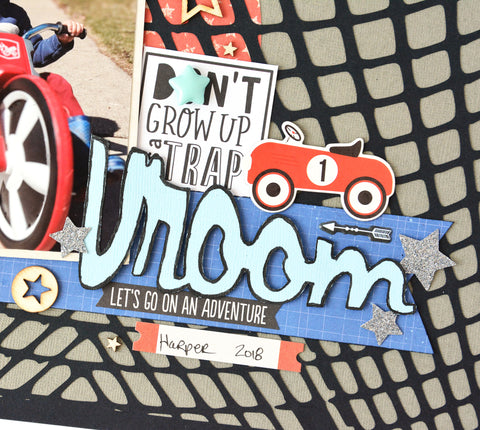
I am hoping it warms up enough here in Minnesota where the kids can be outside again riding their bikes. In the mean time, my Spring fever has me scrapping a photo of my nephew from last Spring. I thought the JustNick Studios Tread Background was perfect for this bike riding photo. I used the Simple Stories Cool Dude collection as well as some Cocoa Vanilla Studios Flying High and Totally Rad.


To get the tire treads to stand out, I backed the black tire tread design with a grey cardstock. I placed a red patterned paper circle between the layers before gluing them together. I didn't want to cover up too much of that tread design. Then my photo and embellishments went over that circle. I may have gotten a little carried away with the embellishing, lol.


I repeated the circle, adding a few more smaller circles in the opposite corner. Again, I went crazy embellishing the tops of these circles.


For my title, I warped the Vroom from the Planes Trains & Autmobiles cut fileI wanted the word to be larger starting out and get smaller. I thought it would help show movement. Here is how you can warp an object in Silhouette Studio.

1.  Right click on the cut file and select Ungroup. Move the items you are not using off the grid.
2.  Select the object to warp and click on the warp icon (last icon on the right).
3.  Select a corner edit point and drag it outward. On the opposite end, select a corner edit point and drag it inward. Play around with the edit points until you like how it looks.


I didn't like how the stars looked warped so I trimmed them off. I replaced them with other stars from an ephemera pack. I edged the word with a black marker. This helps it pop as well as gives it a grungy feel.


I love how this turned out.


Check out the tutorial on how I warped my title in my YouTube process video.


Here are the cut files I used today ...


Thanks so much for stopping by.

Tuesday, November 13, 2018

This Is Your Year To Sparkle - Jillibean Soup and Xyron

Hello blogging friends,

Jillibean Soup and Xyron teamed up this November and I thought it would be fun to put together a tutorial on how to add glitter to a digital cut file. Sometimes I just like to add some sparkle to my cut files!

You will need ...
1.  A Xyron Sticker Machine ( I am using a Creative Station )
2.  Glitter
3.  A Die Cut
4. A Bone Folder (or popsicle stick)


Place your die cut upside down in the sticker machine. We want the adhesive to be on the top side.


Take your bone folder and rub over the paper to transfer all the adhesive to the die cut.


Carefully peel the die cut away from the paper backing and place it sticky side down into the glitter.


Shake off the excess glitter. 


 I used this die cut on a layout I created with the gorgeous new Jillibean Soup Garden Harvest collection. I love the mix of colors in this collection. For the first time, you are seeing black appear in a Jillibean Soup collection! I wanted to showcase all the colors and patterns so I layered blocks to form a patchwork background. Because I did a lot of journaling on this layout the patchwork of colors is not overwhelming.


My veterinarian daughter recently brought home this little old lady she calls Nana. Nana is a sweet 10 year old terrior mix with a few health issues ... but as a veterinarian, that didn't phase my daughter. So Nana is the one who will sparkle this year, she found her forever person.

I layered lots of fussy cut flowers and pea pod die cuts around my photo.This collection has enamel shapes as well. I used some in the center of my flowers and you can also see small butterflies. Here are some detailed shots ...


#sponsored Supplies:

Thanks so much for stopping by! Have a great week.
~Marcia


Friday, July 20, 2018

Christmas in July - Stash Bash

Hello blogging friends!

It's time for the July Stash Bash. This month we are focusing on using printables. Printables are a great way to stretch your supplies and they don't take up space in your supply stash. I thought I would take this opportunity to do a tutorial on how to use the Print and Cut feature in the Silhouette software to print these Santas. If I start on my Christmas cards now, there is a chance I might get them out before New Years this year, lol. The Santa driving the pink convertible is from the Carta Bella A Very Merry Christmas collection and the Santa on the right is from the PhotoPlay Paper Holiday Cheer collection.


I combined my printable Santas with the Holiday Cards 2 digital cut file from JustNick Studios. The Ho Ho Ho background is perfect.


Here is the link to my YouTube Video with the tutorial on how to use the Print and Cut feature.


Thanks so much for stopping by today. Have a great weekend!
~Marcia


Thursday, January 21, 2016

Basic Grey Dear Heart Banner and Xyron

Hello blogging friends!

I am sharing a wedding idea today. When my daughter got married she wanted a vintage suitcase to hold the cards guests brought. I made a banner to hang on the suitcase so people would know the suitcase was for cards. It was perfect for her retro themed wedding.  Well, I've had a request to borrow the suitcase for another wedding ... I decided to make a new banner for the bride so she could keep it. I used the soft and romantic Dear Heart collection from Basic Grey and my Xyron adhesive.


I just tied the ends of the ribbon on the suitcase clips for display. This suitcase was slightly larger than a laptop bag if that gives you an idea for size.


Let me show you how I created the banner.

Supplies:
Silhouette Cameo
Digital file for the banner
Hole Punch

Step 1.  I found a banner in the Silhouette On-line Store and cut out enough for 5 pennants.


Step 2.  I ran the pink pieces and green scallop pieces though my new Xyron 9" Creative Station.


Step 3.  After adhering the pink pennants on top of the scallop base piece, I punched 2 holes at the top.


Step 4.  Weave a long piece of ribbon through each hole, leaving lots of length on both ends for hanging.


Step 5.  Adhere the green scallop border at the top over the ribbon.


Step 6.   Take a piece of white cardstock slightly wider than a small doily die and run it through a Xyron 3" Sticker Maker. I love taking these with me on crops!


Step 7.  Peel off the plastic sheet on top. Place your doily die on top and run through your die cutting machine.


Step 8.  Peel the doily off it's adhesive sheet and adhere to the banner. I love that if I apply the adhesive first and then die cut, I have no adhesive residue to clean up in the doily holes. Now place a letter sticker in the middle. Embellish with other stickers if you like.


Here is what my suitcase looks like closed. It was originally a blue suitcase. I spray painted it black. The inside was also blue and not very pretty looking. I applied some gold contact paper inside to cover up the blue and added a few stick on gems.


Thanks for stopping by today. Be sure to check out the Xyron Facebook page all week to see what our other designers have been making.